Help Center
Watched Binders
Watched binders let you track Magic: The Gathering cards and their price movements. Create multiple binders to organize your collection, cards you want to buy, or market trends you're following.
What are Watched Binders?
Watched binders are customizable lists of Magic: The Gathering cards that you want to track. Each card in your binder displays its current market price and price trends.
With Watched binders you can:
- Track prices for cards you own or want to buy
- Organize cards into different binders (e.g., by format, by deck, by investment potential)
- See low, average, and market prices for each card
- Share binders with friends or keep them private
- Filter cards with custom criteria
The main Watched page displays all your cards, which you can then organize into specific binders.
Adding Cards to Your Watched List
You can add cards to your Watched list in two ways:
From a Card Page:
When viewing a specific card, click the "Add to Watched" button.
From the Watched Page:
Use the "Add a card to your watched list" search box at the top of the page. Type the card name and select it from the dropdown suggestions.
Once added, cards appear in your main Watched cards list. From there, you can organize them into specific binders.
Creating Binders
To create a new binder:
- Click the "Binders" dropdown button
- Select "Create Binder"
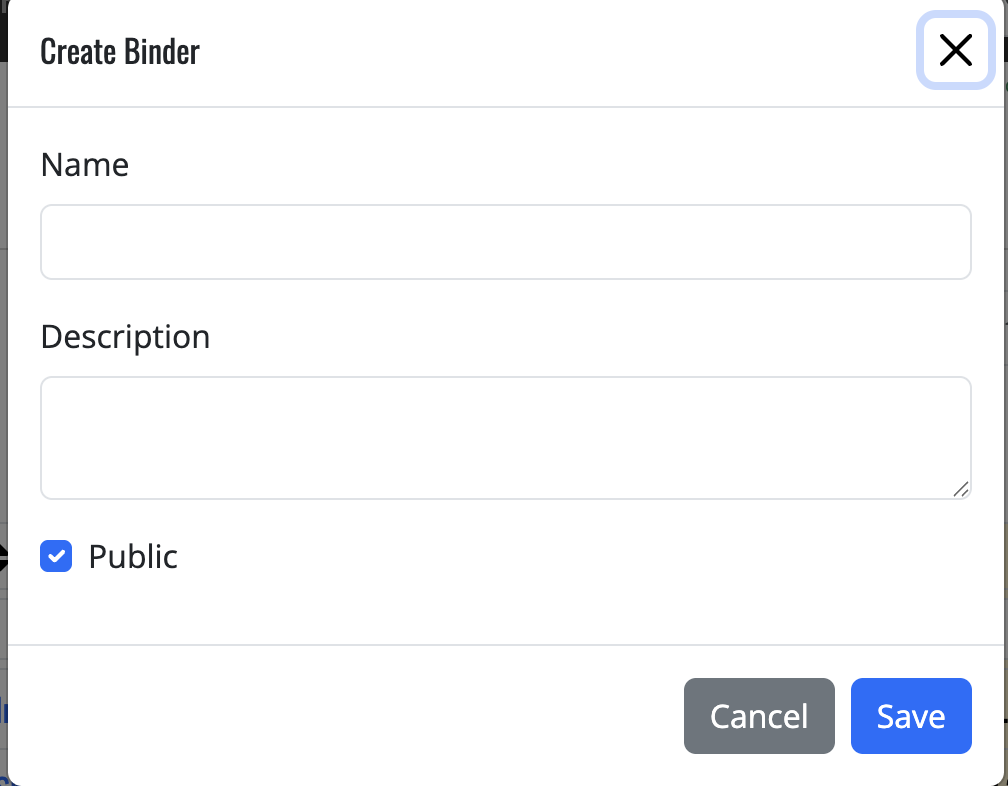
- In the popup form, enter a name for your binder
- Add an optional description
- Choose whether the binder should be public or private by checking or unchecking the "Public" checkbox
- Click "Save" to create your binder
Public binders can be viewed by anyone with the link. Private binders are only visible to you.
Managing Cards in Binders
After creating a binder, you can add cards to it from your Watched list:
- From your Watched cards page, select the cards you want to add to a binder by checking the boxes next to them
- Click the "Binders" dropdown
- Select the binder you want to add the cards to
To remove cards from a binder:
- Open the specific binder
- Select the cards you want to remove
- Click the "More" button
- Select "Remove from binder"
Note: Removing a card from a binder does not remove it from your main Watched list.
Viewing and Navigating Binders
To view your binders:
- Click the "Binders" dropdown from the Watched page
- Select the binder you want to view
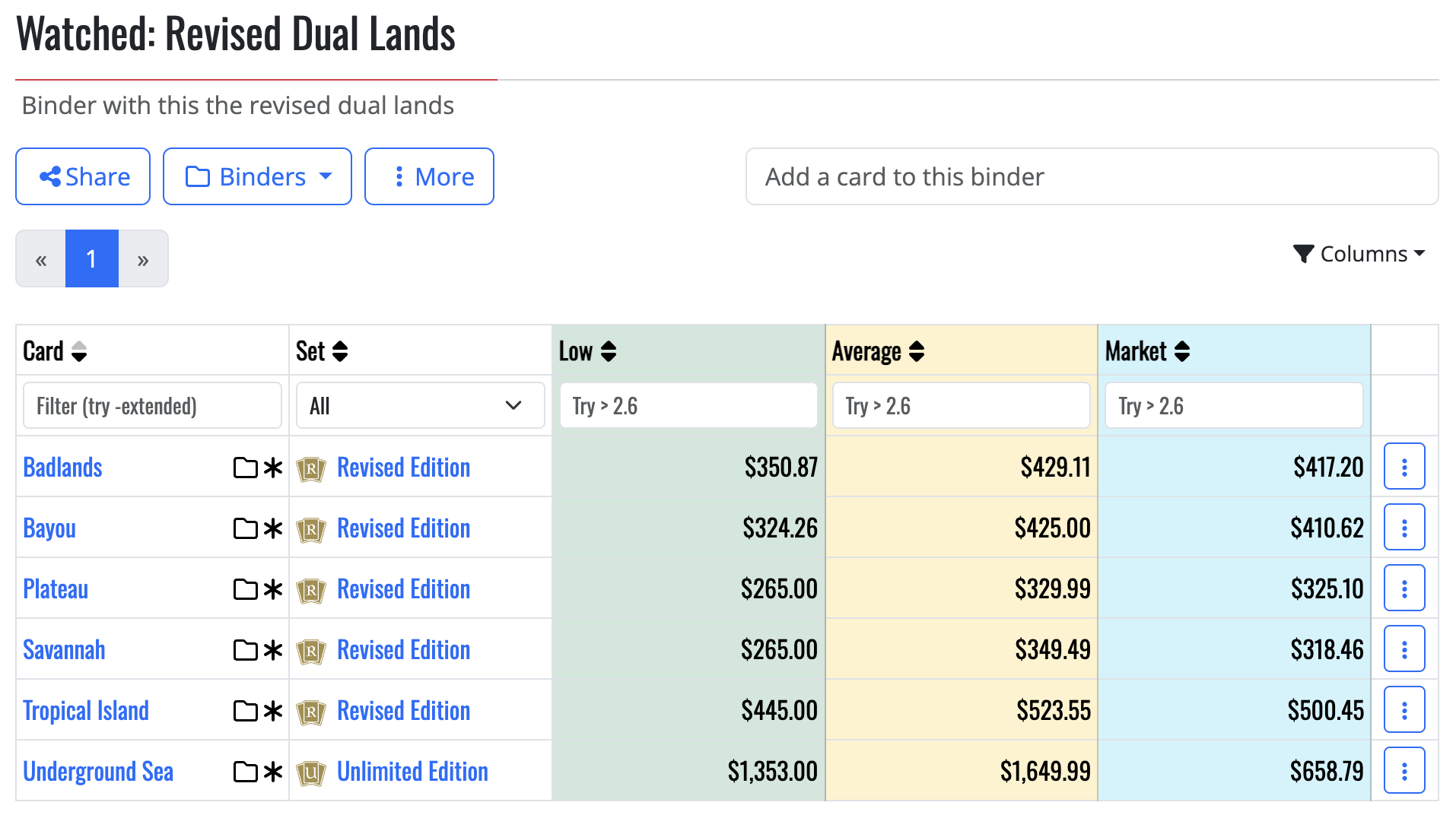
When viewing a binder, you'll see:
- The binder name and description
- Cards in the binder with their prices
- Price columns showing Low, Average, and Market prices
- Navigation buttons to move between pages if you have many cards
You can also use the filter box to search for specific cards within a binder.
Understanding Price Information
Each card in your binder displays three price points:
- Low: The lowest current price available from sellers
- Average: The average price across all sellers
- Market: The typical price that the card actually sells for
These prices automatically update as market conditions change, giving you current information about your cards' values.
You can filter prices by using the "Try > [value]" input boxes at the top of each price column.
Sharing Your Binders
To share a binder with others:
- Open the binder you want to share
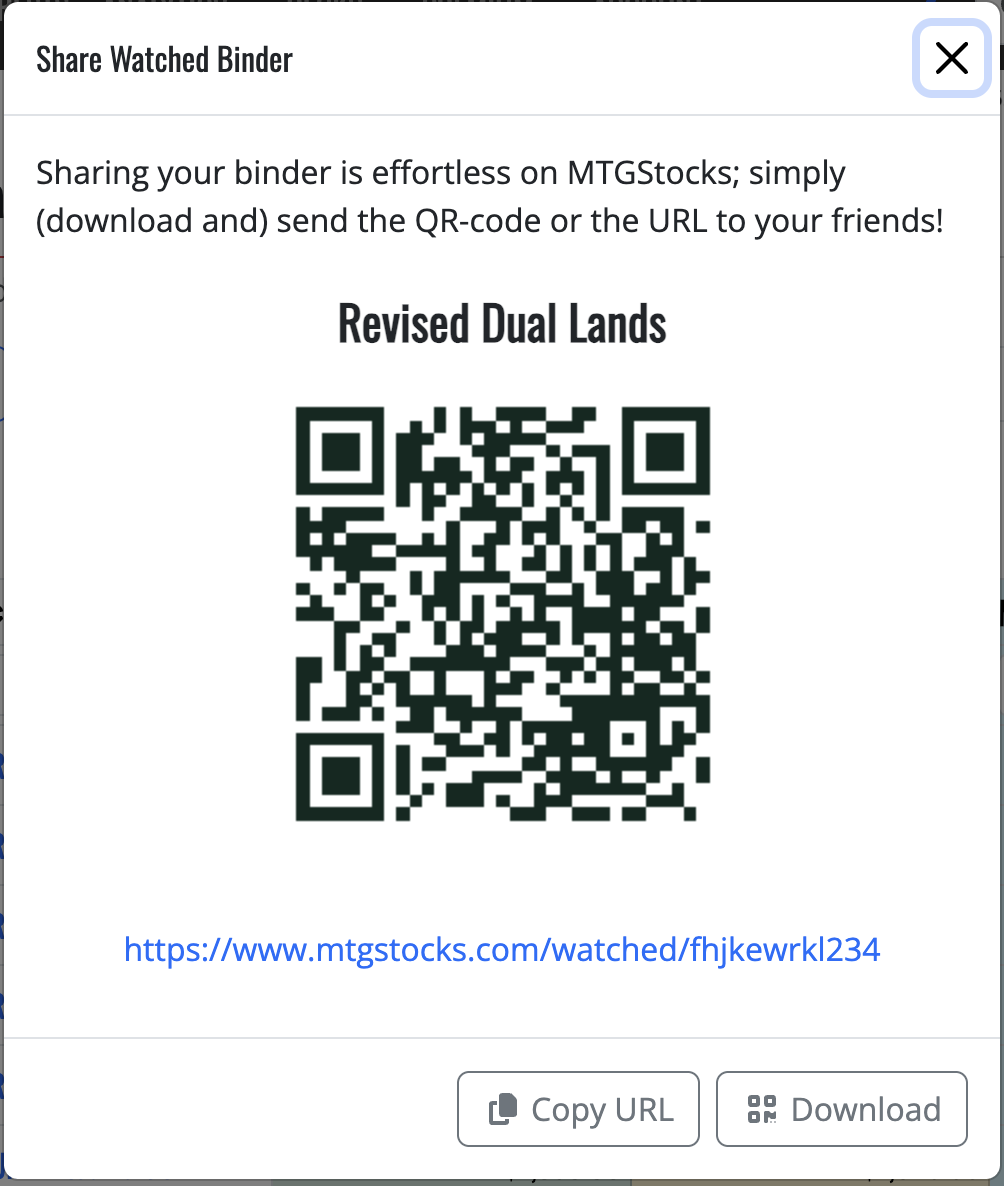
- Click the "Share" button
- In the popup window, you'll see:
- A QR code that links to your binder
- A direct URL to your binder
- Options to copy the URL or download the QR code
Share the URL or QR code with friends so they can view your binder. Remember that only binders marked as "Public" can be viewed by others.
Tips for Organizing Your Binders
Here are some effective ways to use binders:
- Format-based binders: Create separate binders for Standard, Modern, Commander, etc.
- Collection tracking: Make binders for cards you own vs. cards you want
- Investment tracking: Create binders for cards you think will increase in value
- Deck building: Make a binder for each deck you're building to track prices
- Set completion: Track your progress completing specific sets
You can create as many binders as you need to organize your cards effectively.
Need More Help?
If you have questions about using the MTGStocks Watched system, please visit our help center or contact us.